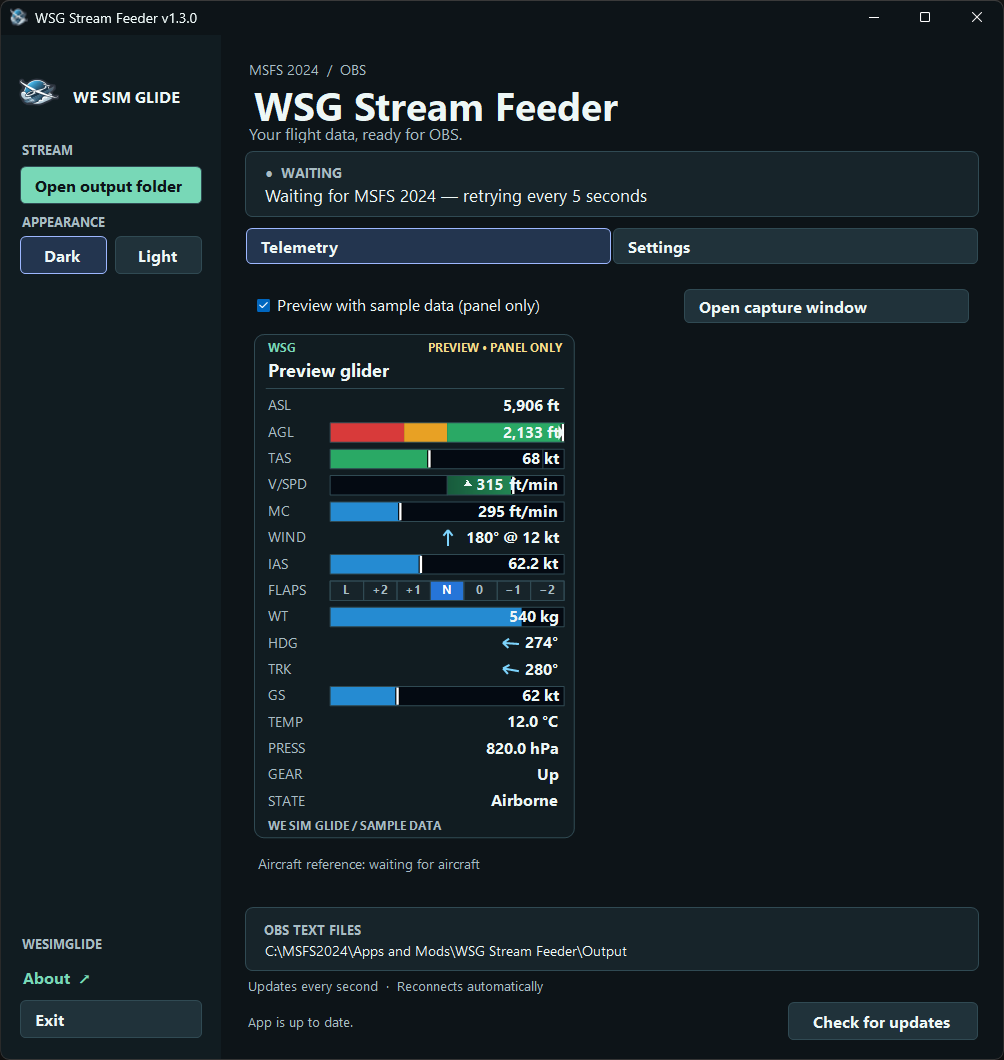
Choose the glider telemetry you want, export individual text files, or capture a compact graphical panel in OBS. Shared unit settings, aircraft reference gauges and automatic reconnect keep the display easy to manage.
WSG Stream Feeder v1.3.0 with sample telemetry. Choose your readings and units in Settings, then capture the panel in OBS.
Your overlay, your choice
Text files, a capture panel, or both.
Choose from 19 telemetry channels. In Settings, select File, Panel, or both for each reading, then save. Move rows up or down to arrange the panel.
Individual text files
Build your own OBS layout. Each enabled channel writes its own file in the feeder’s Output folder. Add an OBS text source, enable Read from file, and choose the matching file.
Use OBS to set fonts, colors and positions, or use the files in your own processing workflow.
A ready-to-capture panel
Use the compact labels, gauges, direction arrows and flap indicators in an OBS Window Capture source. Crop and scale the panel to fit your scene.
Open capture window moves the panel out of the main window. Its height fits the selected rows; horizontal resizing widens the gauges and keeps values aligned at the right.
The separate capture window leaves the main telemetry area blank. Keep the capture window restored while recording or streaming; you can minimize the main settings window.
All 19 telemetry choices.
Every channel below can feed a text file, the panel, or both. ASL, heading, ground speed and vertical speed are the default file selections—not a limit on what you can display.
Available readings, panel behavior and text filenames
Reading
What it shows
Text file
ASLAltitude above sea level
Geometric altitude above sea level.
altitude_asl.txt
AGLHeight above ground
Height above the surface below, including obstacles reported by MSFS.
altitude_agl.txt
ELEVGround elevation
Ground elevation reported directly by MSFS.
ground_altitude.txt
HDGTrue heading
Where the nose points; arrow and bearing relative to true north.
heading_true.txt
TRKGround track
Direction of travel over the ground; arrow and true bearing.
track_true.txt
GSGround speed
Speed over the ground, with a blue gauge.
speed.txt
IASIndicated airspeed
Indicated airspeed, with a blue gauge.
airspeed_indicated.txt
TASTrue airspeed
True airspeed, with a VNE gauge when aircraft reference data is available.
airspeed_true.txt
V/SPDVertical speed
MSFS climb/descent reading, shown on a centered gauge.
vspeed.txt
WINDWind speed
Horizontal wind speed; combined with direction in one panel row.
wind_speed.txt
WINDWind direction
True bearing the wind comes from; the rotating arrow points downwind.
wind_direction.txt
NETTONetto (NB21)
MSFS vertical air-mass velocity, the source of NB21 Logger’s IGC NET field; centered lift/sink gauge.
netto.txt
WTTotal weight
Current total aircraft mass, with an MTOW gauge when available.
weight.txt
FLAPSFlap setting
Centered detent labels when known; raw simulator index otherwise. Hidden on the panel for known unflapped gliders.
flaps.txt
TEMPTemperature
Ambient air temperature.
temperature.txt
PRESSPressure
Ambient air pressure.
pressure.txt
GEARLanding gear
Gear handle position: up or down.
gear.txt
STATEFlight state
On ground or airborne.
flight_state.txt
SIMSimulation rate
Simulator speed multiplier.
simulation_rate.txt
Selecting either wind channel shows one combined WIND row, such as an arrow beside 90° @ 12 kt. The two wind text exports remain independently selectable. V/SPD reports aircraft vertical speed. NETTO reports ambient vertical wind, matching NB21’s NET source; it is not an aircraft-specific instrument netto or TE reading. Individual ballast channels are not offered.
Gauges made for glider telemetry.
TAS and VNE
The aircraft reference supplies the TAS VNE marker. The gauge’s amber band begins at 90% of VNE; the filled bar turns red above VNE.
Weight and flaps
Total weight is compared with maximum takeoff weight (MTOW) when known. Flap labels are centered in their cells, with the active position highlighted.
AGL, V/SPD and NETTO
AGL uses a nonlinear height gauge. V/SPD and NETTO use centered square-root scales from −5 to +5 m/s (about ±984 ft/min or ±9.7 kt), with green for positive and red for negative values. Overflow markers appear beyond the scale; the number still shows the actual value.
IAS and GS
Blue bars show display ranges, not operating limits. IAS shares TAS’s range when known (otherwise 0–300 km/h); GS uses 0–400 km/h. Values beyond the range remain readable with overflow markers.
Unknown glider? Live telemetry still works. Missing aircraft metadata means no invented VNE or weight limits. Unavailable readings show N/A. The app looks up reference data once after identifying the aircraft; it does not repeatedly download it during a normal flight.
One set of units for both outputs.
Settings controls the panel and text exports together. Choose units independently for each measurement group, and use Units in text files to include suffixes. Suffixes are off by default; bearings retain their degree symbol.
Altitude: ft or m
Airspeed and ground speed: kt, km/h, mph or m/s
Vertical rate and NETTO: ft/min, m/s or kt
Wind speed: kt, km/h, mph or m/s
Weight: kg or lb
Temperature: °C or °F
Pressure: hPa or inHg
Adjust panel size to scale its text and graphics together. Dark/Light themes apply to both windows. Your saved selections, order, units and appearance are remembered. The main window also remembers its position, size and maximized state. Enable Start with the main window minimized in Settings and choose Save settings to start minimized every time, even after restoring the main window to exit. This option is off by default. The capture window remembers its position and width; its height still fits your selected rows. If it was open when you exited the app, it reopens automatically, including its minimized state. Close the capture window yourself to keep it closed on the next launch.
From download to overlay.
Extract the full ZIP
Choose a writable folder. Keep all included files together and open WSG Stream Feeder.exe. Windows x64 and .NET 8 Desktop Runtime (x64) are required.
Choose your readings
Open Settings, choose File and/or Panel for the values you want, set units and order, then Save settings.
Use Preview with sample data to check the panel layout. Preview never writes fictional telemetry to text files.
Connect OBS
For text sources, use Open output folder and select each file in OBS. For graphical capture, use Open capture window, add a Window Capture source, and crop or scale it.
Start your flight
The feeder connects automatically and updates once per second. It reconnects if MSFS becomes unavailable; missing readings display N/A.
Text exports keep updating while minimized. Keep the separate capture window restored for OBS.
Built to stay out of the way.
One simulator sample per second feeds all selected values. Text files are replaced only when their content changes; the panel redraws when its readings or appearance change. There is no continuous animation or browser runtime in the app. No OBS plugin is required.
NETTO in version 1.3.7
Saved MC and Vertical air mass selections become NETTO, preserving your chosen outputs and row order. Repoint affected OBS text sources to netto.txt; existing maccready.txt and wind_vertical.txt files become N/A.
Upgrading from 1.2?
Point an old altitude text source at altitude_asl.txt. ASL is geometric altitude above sea level. The former ALT, GRND and CLIMB selections migrate to ASL, ELEV and V/SPD. ELEV uses ground_altitude.txt; vspeed.txt stays the same. Existing retired files become N/A.
Aircraft reference data supplies TAS VNE, maximum weight and flap labels when available. Unknown gliders still show live values. Sample preview affects only the graphical panel; text files always contain live readings or N/A.
Ready for the next session.
Choose Dark or Light to match your desktop. Your choice is saved. Official releases check for updates on startup and verify the download before installing it.
While connected to MSFS, an update waits for you. Finish your stream, then choose Restart to update or close and reopen the feeder. Your OBS files and settings are preserved.
See how the feeder works.
The source is available on GitHub, including the SimConnect reader, OBS text-file writer, interface, and update verification. The repository includes build instructions, compatibility tests, and a description of the app’s security behavior.
You can inspect the code and build your own version. The original code is licensed under PolyForm Noncommercial 1.0.0, allowing noncommercial use, modification, and sharing under its terms. Commercial use is not permitted. Microsoft components and supplied branding retain their separate terms.
Public source makes the application easier to inspect; it does not certify antivirus clearance. Development builds disable official automatic updates and are not claimed to be byte-for-byte identical to the official download. For normal installation, use the complete release ZIP.
A few useful details.
What happens when I deselect a file?
An existing file for that telemetry is set to N/A so OBS cannot keep displaying a stale number. A file that was never enabled is not created. Unrelated files are left alone.
Is the speed indicated airspeed?
speed.txt is ground speed. IAS and TAS have their own selectable exports and gauges. Units are configurable. ASL is geometric altitude above sea level; heading is true, not magnetic.
Do I need an OBS plugin?
No. For individual text sources, enable Read from file, and select the matching files in the feeder’s Output folder.
Where are my settings?
Telemetry selections, order and units are saved from the Settings tab. Output defaults to an Output subfolder beside the EXE. For another location, copy settings.example.json to settings.json and edit OutputDirectory. Relative paths are resolved beside the application. Update the OBS file sources to match.
What happens if I close the feeder?
Exit stops telemetry and writes N/A to enabled files. Minimizing the main window keeps telemetry and text files running. Closing the main app also closes the capture window; closing only the capture window returns the panel to the main window. If MSFS closes, the feeder waits for it to return.
Windows or antivirus warns about the download
The application does not currently carry an Authenticode publisher certificate. Its signed updates verify release authenticity, but they do not provide Windows publisher reputation. Keep protection enabled, check the exact detection and release hash, and contact WeSimGlide if the file is flagged.
Verify your download.
SHA-256 of the published ZIP, read from the release metadata:
Release information is loading…
A matching hash identifies the published ZIP; it is not a guarantee of antivirus clearance. The application separately verifies signed release metadata and the package’s file inventory.
 WeSimGlide